How to Make an App Store Preview Video with Claude Opus (Free Prompt)
·8 min read·Video made with Claude Opus 5.5
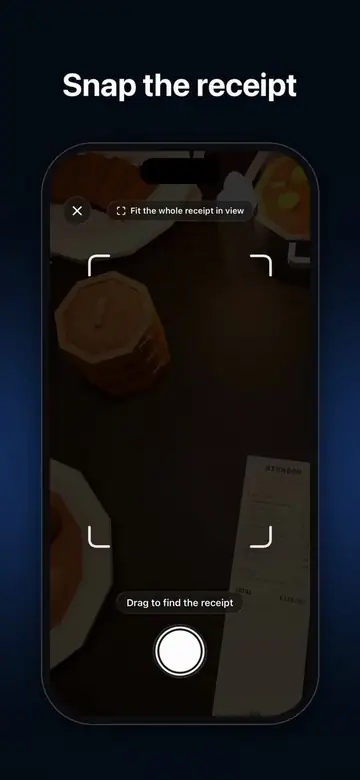
Claude Opus 5.5 edited this 25-second App Store preview for Tidyweek from four screen recordings and a single prompt. It laid out the captions and touch rings, composed the music in code and exported the file to Apple's exact spec, checking every number with ffprobe. Here's the prompt, so you can make one for your app.
Make a 25-second App Store preview video for my iPhone app from the screen recordings in the recordings folder.

THE APP
Tidyweek: a calendar app that plans your week for you.
Brand: warm off-white background, near-black text, one accent colour (#FF5A36).

THE RECORDINGS
week.mp4: opening the app on a fully planned week and scrolling through it
add-task.mp4: typing in a task, and Tidyweek finding it a free slot
focus.mp4: a meeting shrinks to make room for a focus block
reschedule.mp4: one tap reschedules a whole day
The README in the same folder says when and where every tap happens.

STORY (886×1920 portrait, 30 fps, 25 seconds)
0–4 s: The planned week, with the caption "Your week, already planned."
4–20 s: The three features, one recording each, in the order above. Give each a caption of 3 to 5 words that says what the user gets, not which button to press.
20–25 s: End on the app icon, the name and "Plan your week in one tap."

APP STORE RULES (follow them strictly)
- Use only the recordings for the app's screens. Don't redraw, fake or zoom into any part of the UI. You can scale a recording down to make room for a caption.
- No fingers or hands. Show each tap with a simple touch ring, at the time and place the README gives.
- Use only cuts, dissolves and fades between shots.
- No prices, no dates and nothing seasonal in the captions.
- Make the captions large and easy to read, and leave them on screen long enough to read. Most people watch with the sound off, so the story has to work silently.
- The frame at 5 seconds is the App Store's default poster frame, so make it a strong one.

MUSIC
Compose an original light, upbeat track in code, so there's nothing to license, and add soft UI sounds on each tap.

OUTPUT
Build it in code, driven by a frame number so every frame is deterministic, and export to Apple's app preview spec: 886×1920, 30 fps, H.264 High Profile at level 4.0 or lower at about 10–12 Mbps, with stereo AAC audio at 256 kbps and 48 kHz. Check the finished file against that spec with ffprobe. Also export the frame at 5 seconds as a PNG.
About the recordings. Tidyweek isn’t a real app, so we had no iPhone recordings to give Claude. In a separate session, we had Claude build a working prototype of the app and record it at iPhone resolution, driving it with scripted taps and typing. Every app screen in the preview comes from those four recordings. For your app, record it on your iPhone instead, because Apple asks for preview footage captured on a device.
We then ran the prompt above once, in a fresh Claude Code session with Claude Opus 5.5, and published what came out. We didn’t edit the video or the code. The file above is a 2.6 MB copy for the web; the one Claude made for App Store Connect is 35 MB.
What you need
- Claude Code, or any Claude Opus 5.5 setup that can run commands on your computer.
- Google Chrome and ffmpeg. On a Mac,
brew install ffmpegcovers the second one. - Screen recordings of your app, one short clip per feature, 5 to 10 seconds each. Apple’s suggested way is to connect your iPhone to a Mac, open QuickTime Player, choose New Movie Recording and pick the iPhone as the camera.
- A note of when and where you tap in each clip. Ours was a README with the exact second and screen position of every tap. A rough version works too (“at about 2 seconds I tap Shorten meeting, near the bottom”); ask Claude to find the exact frame.
- About 35 minutes. Our run took 33.
How to use the prompt
- Put your clips in a folder called recordings, next to your note about the taps.
- Rewrite THE APP and THE RECORDINGS for your app, and change the opening caption and the closing line in STORY. Leave Claude to write the feature captions.
- For a landscape app or game, change “886×1920 portrait” to “1920×886 landscape”.
- Run Claude Code in the folder that holds recordings and paste the prompt.
- Upload the MP4 in App Store Connect, under App Previews and Screenshots for your app’s version. You can add up to three previews per device size and language, and processing can take up to 24 hours.
Why this prompt works
Apple’s rules are in the prompt, as rules. Apple’s guidance says previews should show only footage of the app, with no hands, simple transitions and no prices, and App Review checks them. Listing the rules makes Claude follow them while it edits, and lets you check its work against them afterwards.
“Says what the user gets, not which button to press.” This one line is why the captions read like an ad rather than a manual. Claude wrote “Tasks find their own time.”, “Your focus time, protected.” and “Plans change. Your day adapts.”
It’s built to work silently. App previews autoplay with the sound off, so the captions carry the story, and Claude kept each one on screen for 3 to 6 seconds.
It knows about the poster frame. If you don’t pick one, the App Store shows the frame at 5 seconds before the preview plays. Claude chose where to start the add-task clip so that 5.00 seconds lands on the only clean pause in it: the full task typed, the hint underneath, and no ring or transition on screen.
It states the spec and asks Claude to check it. Claude wrote a checker that runs 21 checks on the finished file against Apple’s spec, and every one passed.
What Claude built
- An edit list, a page that draws each frame from it, and scripts to pull frames out of the recordings, render, compose the music, encode and verify. Every recording is scaled down whole to 75% and plays at its real speed: no speed changes, freezes, crops or zooms. It sits under a band of caption space, on a background colour Claude sampled from the app. There’s no phone frame.
- Captions in Inter ExtraBold at 86 pixels, with the key word in the brand orange, fading in and out.
- Touch rings placed from the tap note and sized to Apple’s 44-point touch target. For the two swipes in the week view, Claude measured how far the list moved in each frame of the recording, so the ring travels with the scroll. A script confirms every ring is centred on its tap.
- The music, a 120 BPM track in C major that Claude called “Tidy”: marimba, a soft pad, bass, light drums and a bell melody, resolving to a C chord as the end card lands at 20 seconds. Each tap gets a soft click or pop, and the music dips slightly under it.
One detail shows how literally Claude took the spec. Apple asks for about 10 to 12 Mbps, but clean app screens compress so well that an 11 Mbps encode came out at 4.8 Mbps. So Claude encoded at a constant 11 Mbps and padded the stream with filler data, the standard way to hit a fixed delivery bitrate. It also encoded on a single thread, because multi-threaded encodes came out slightly different every time.
The checker’s results for the finished file:
- 886×1920, 30 frames per second, all 750 frames exactly 1/30 of a second long
- H.264 High Profile, level 4.0
- 10.99 Mbps video
- stereo AAC audio at 256 kbps and 48 kHz
- 25.0 seconds
What Claude said it would improve
- The add-task shot is short. Lining up the poster frame fixed where the clip starts, so it opens on the last keystrokes, and the “Planned” confirmation is only on screen for half a second.
- One touch ring is faint. The tap on the space bar falls during a dissolve, so its ring only shows at about 30% strength.
- The app screens show dates. Apple’s no-dates advice is about your captions, but recording the app without visible dates would help the preview age well.
- The orange caption words are lower contrast than the black ones. They read fine at this size, but all-black captions are the most legible.
- It couldn’t hear the music. It checked the mix by loudness, spectrogram and timing, and asked for a listen.
Make it yours
- Three previews instead of one: Apple allows up to three per device size. Ask for three versions, each opening on a different feature.
- Other languages: “Make versions with the captions in German and Japanese.” Previews are set per language in App Store Connect.
- A voiceover: record it first, add it to the folder and ask Claude to time the shots and captions to it.
- Other devices: ask for the iPad sizes as well, using the resolutions listed in App Store Connect Help.
- A website or social version: ask for a 1080×1920 cut with a bigger end card and your App Store link, where Apple’s rules don’t apply.
If something goes wrong
- Worried about review: ask Claude, “List everything you drew on top of the recordings.” The answer should be only the captions, the touch rings and the end card.
- Rings in the wrong place: give exact tap times, or ask Claude to find the frame where the screen first reacts to each tap.
- App Store Connect rejects the file: paste the error into Claude Code and ask it to compare the file against the spec with ffprobe.
- Captions run long: keep the 3-to-5-word limit in the prompt. Longer captions won’t be readable in the time a feature is on screen.
Below are more app and product demos from the directory. Most come with the prompt that made them.